
Key Takeaway: Browser extension security doesn’t end at installation: later updates can introduce harmful behavior, even without new permission requests. A familiar extension may still work while misusing access you already granted. Periodic reviews help you assess whether you still need it, whether its permissions fit its purpose, and who oversees changes. These checks reduce unnecessary exposure, but they cannot guarantee safety.
The Extension You No Longer Think About
Browser extension security deserves attention long after you install something that makes your workday easier. Checking add-on safety means looking beyond a tool’s usefulness and considering the access it still has.
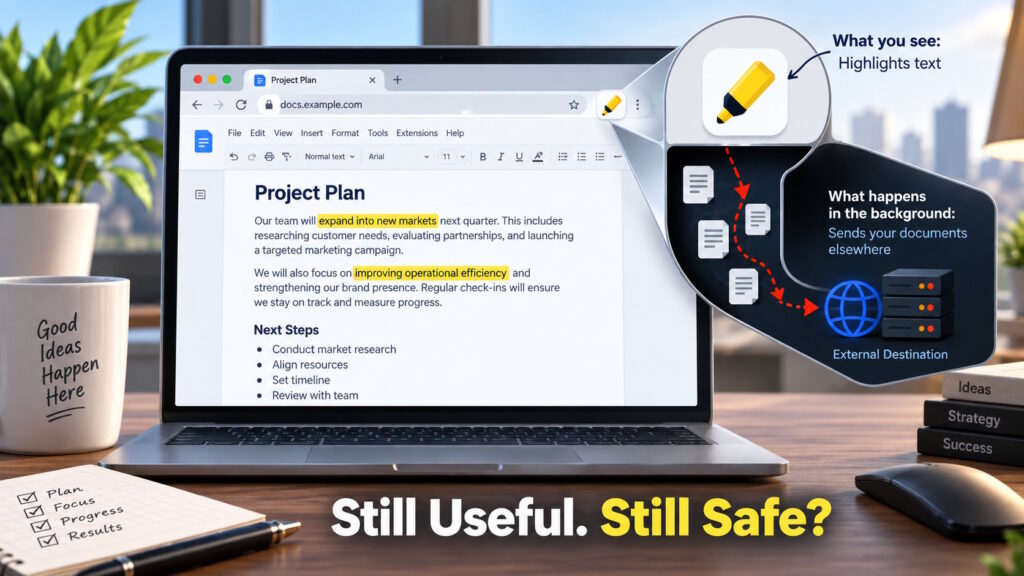
Imagine you’ve used the same page-highlighting extension for years, marking useful passages while researching reports and preparing presentations. It does its job, so you rarely think about it. You’re busy finishing a proposal, not wondering who maintains a small browser feature.
That leaves an uncomfortable question: what would make you reconsider a tool that still seems to work perfectly?
Can a Trusted Extension Become Unsafe?
Yes. An extension can provide useful features without malware at first, then introduce harmful behavior through a later update. Socket documented this pattern in both purchased extensions and products the attacker created.
The practical response isn’t to distrust every add-on. It’s to reconsider whether you still need it, whether its access remains appropriate, and who should review important changes.
Useful First, Malicious Later
Socket’s August 27, 2026, investigation identified eighteen malicious Chrome extensions and one malicious Microsoft Edge extension. The attacker bought five from legitimate developers and created the other fourteen. Their initial versions delivered the advertised features without malware, according to Socket, but later releases introduced malicious behavior.
One acquired extension helped users restore right-clicking and copy text from webpages. The campaign also included credential-stealing capabilities alongside cryptocurrency theft, extending the concern beyond people who use digital wallets.
This case shows why blaming the original installation decision misses part of the problem. Someone could have encountered genuinely useful software before the attacker introduced harmful features.
However, the investigation doesn’t tell us how frequently extensions become malicious across the wider market. It demonstrates a risk, not a reason to assume every familiar extension hides something dangerous.
Behind the Familiar Icon
Ownership and software behavior deserve separate attention. A sale changes who controls future development, but that change alone doesn’t establish that anything malicious has happened.
Meanwhile, Chrome automatically updates extensions by default, delivering new features and security fixes. Users don’t necessarily make a fresh installation decision for each release. Turning off updates would also mean missing security fixes, so freezing software isn’t a sensible general response.
Consider a hypothetical highlighting extension that already has permission to read the webpages where you use it. A later version might continue highlighting passages while also collecting page content for an unrelated purpose. The visible feature could still work even though the software’s behavior had changed.
This illustrates an important distinction: checking whether an extension works isn’t the same as checking everything it does. Permissions define available capabilities, while the code determines how the extension uses them.
Browser Extension Security Goes Beyond Permission Prompts
“Wouldn’t my browser warn me?” is a reasonable question, and Chrome does provide a safeguard.
When an update adds a permission that triggers a new warning, Chrome disables the extension until you accept it. However, some permission combinations produce no additional warning. A later version could also misuse access you already granted rather than request anything new.
The absence of a new permission prompt does not prove that an extension’s behavior stayed the same.
At the same time, an extension doesn’t automatically have access to everything in your browser. Its reach depends on its permissions and the websites it can access.
Google also reviews new submissions and updates, and it periodically reviews existing extensions. These safeguards provide protection, but they don’t make earlier approval a permanent guarantee of safety.
Who Owns the Decision at Work?
Now imagine that highlighting extension in a workplace browser, alongside customer records, email, and internal documents.
The employee knows why it helps, and their manager understands the workflow. Yet unless someone owns the review process, everyone could assume that someone else handles the security questions.
For businesses, browser extension security needs a named owner, not an informal chain of assumptions. A practical arrangement lets employees explain the business need while IT evaluates access and handles security concerns.
Smaller companies can assign that responsibility to a designated technology contact rather than creating a new committee. That person needs enough visibility to reassess an extension, not just approve its installation once.
Management features can support that work. Google lets administrators inspect installed extensions, versions, requested permissions, and requested website access on enrolled Chrome browsers. However, administrators must enable reporting; the inventory doesn’t automatically cover every browser employees happen to use.
A Review That Fits Real Life
A useful review can begin with a question that requires no technical training: “Do I still need this?”
Removing an extension you no longer need is a straightforward way to reduce unnecessary exposure. Chrome’s extension management page provides removal controls, although company policies may limit what employees can change.
For extensions you still value, the next question is whether their access matches the job.
Chrome offers website-access settings that can limit an extension to particular sites or access activated when you select it. The appropriate setting depends on the functionality you need, and those controls don’t replace reviewing the extension itself.
For example, a tool you need on one website deserves scrutiny before you allow it across many unrelated sites. That doesn’t automatically make broad access suspicious; it gives you a specific question to ask.
When to Revisit Browser Extension Security
Routine housekeeping helps establish what belongs in your browser. Significant changes deserve another look between those reviews.
A disclosed ownership change, broader permission request, or unexpected shift in features can justify reassessment. Updated privacy disclosures may also prompt questions about whether the extension still fits your expectations.
These changes don’t prove wrongdoing, and a sale or new feature may have a perfectly legitimate explanation. A credible security advisory, however, deserves prompt attention rather than a place on the next routine checklist.
Employees should bring concerns to the technology owner rather than bypass company controls.
Such reviews help clarify necessity, access, and responsibility. They cannot certify that an extension contains no malicious code.
Familiar Doesn’t Mean Forever
Your favorite highlighting extension might remain useful and trustworthy for years. You don’t need to replace a helpful tool simply because you’ve had it for a long time.
The better habit is treating continued access as a decision worth revisiting, rather than a reward for past usefulness. That means knowing why you still need an extension and who will respond when new information raises concerns.
Instead of stopping at “Why did I install this?” the question becomes “Why should it still have access?”
For more perspectives on cybersecurity and everyday technology risks, join the conversation at Tech Scope Connect.
Sources:
- 19 Chrome and Edge Extensions Deliver a Wallet Drainer and Credential-Stealing Payloads | socket.dev
- The Chrome Extension Update Lifecycle | developer.chrome.com
- Declare Permissions | developer.chrome.com
- Permission Warning Guidelines | developer.chrome.com
- Chrome Web Store Review Process | developer.chrome.com
- View App and Extension Usage Details – Chrome Enterprise and Education Help | support.google.com
- Install and Manage Extensions – Chrome Web Store Help | support.google.com